Did it connect at the speed you expected?
Check whether the connection is USB or Thunderbolt and see its negotiated speed. Compare the reading after changing a cable, dock or port.
Explore the live view →Check connected devices, negotiated speeds and the power your Mac reports. Investigate slow drives, charging surprises and unreliable docks from your menu bar.
Free shows what is connected now. Pro adds a history of connection and power events, with alerts and export. £9.99 once, for up to two Macs.
The same USB-C connector can carry data, video and power. WhatPort helps you see what your Mac has actually connected, so you have something concrete to check.
Check whether the connection is USB or Thunderbolt and see its negotiated speed. Compare the reading after changing a cable, dock or port.
Explore the live view →See the connected charger, reported power and charging status. A high-wattage charger will not always deliver its maximum: battery level and charging management matter too.
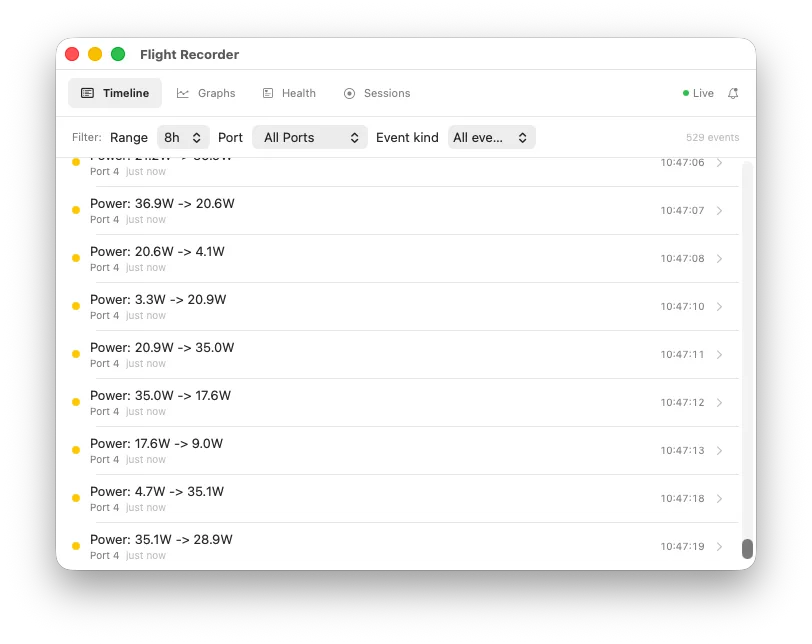
See the charging detail →Pro’s Flight Recorder keeps connection and power events over time. Review the timeline when a drive disconnects or your dock behaves differently.
Explore the Flight Recorder →WhatPort reports the information your Mac exposes. Negotiated link speed is not a file-transfer benchmark, and an event in the timeline does not by itself prove which cable or device caused a fault.
WhatPort identifies what each port is carrying and colour-codes it so you can tell at a glance whether you're on Thunderbolt, DisplayPort, USB, or just charging.
TB3, TB4, and TB5. Lane width, speed per lane, and link generation.
DP alt-mode with lane count, link rate (HBR2, HBR3), and display resolution.
The USB version and connection speed reported by your Mac, with the connected device name.
MagSafe and USB-C power delivery. Live watts, voltage, and current draw.
Pro’s Flight Recorder keeps a history of connection and power events. Investigate a dock dropping out or a charger losing power after it happens, and export a session when you need to share the evidence.
Check what is connected right now. No licence key needed.
Signed and notarised. macOS 14+.
Full detail on Apple Silicon; reduced detail on Intel.
14-day money-back guarantee, no questions asked. Full detail on Apple Silicon; Intel Macs run in reduced detail.
Secure checkout via Stripe. Your licence key is emailed instantly.
By buying you agree to the terms and conditions.
Student or educator? Email [email protected] from your academic address for 50% off.
Already bought? Your key is in your email. Activate it in the app under Flight Recorder.
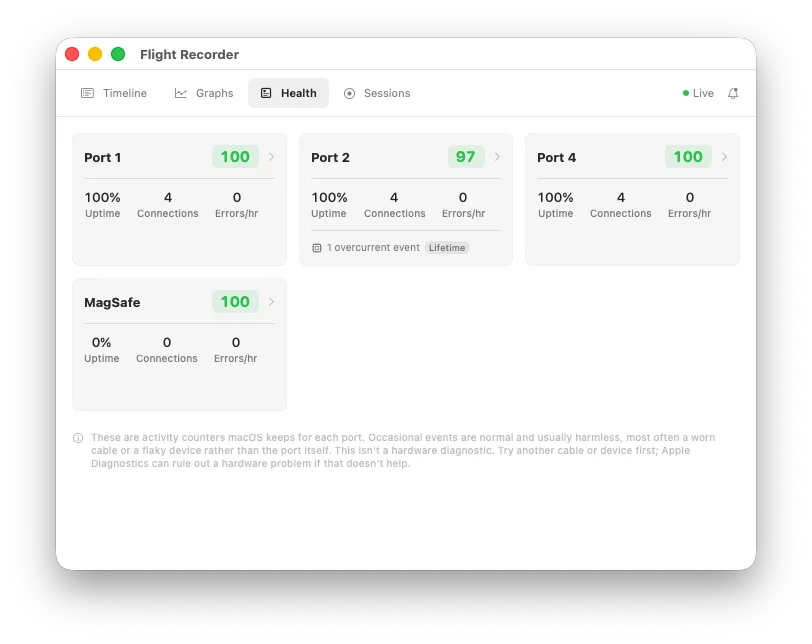
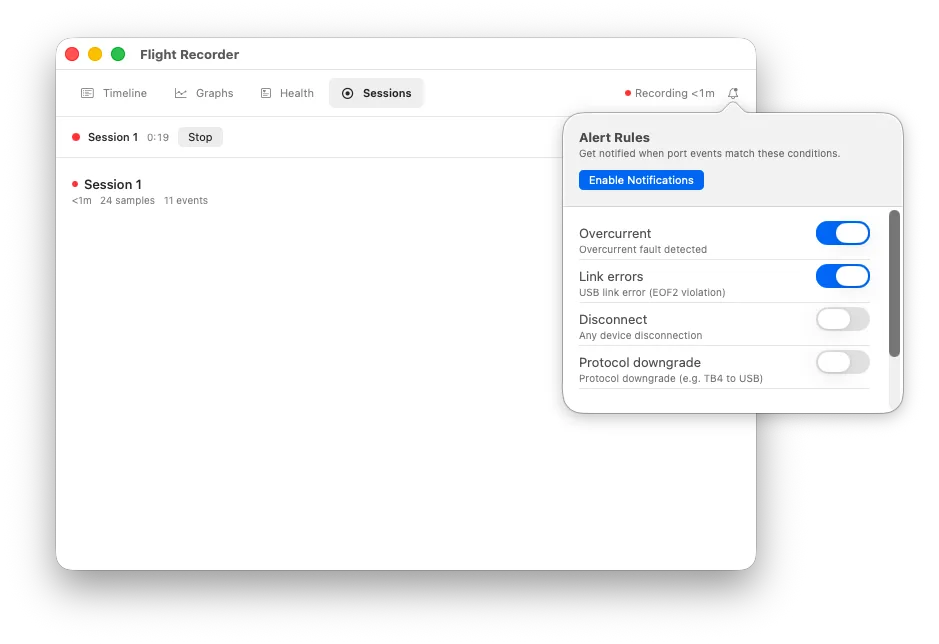
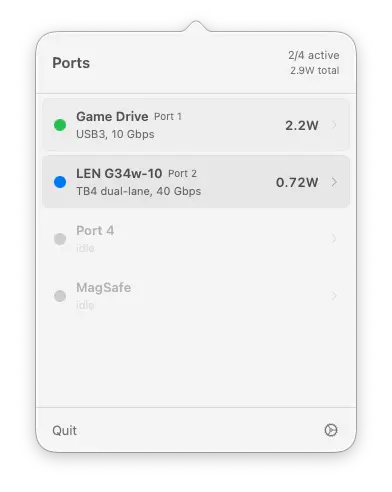
See connected devices, connection speed and power in one place. Open a port’s detail view when you want to inspect the numbers. Available detail depends on your Mac and the connected hardware.
See which lanes are carrying data and at what speed. Each lane shows its transport protocol and power state in real time.
Plug in and watch it happen: Detecting the instant the cable lands, Negotiating while the link trains, then the real numbers fade in. No waiting for the state to pop.
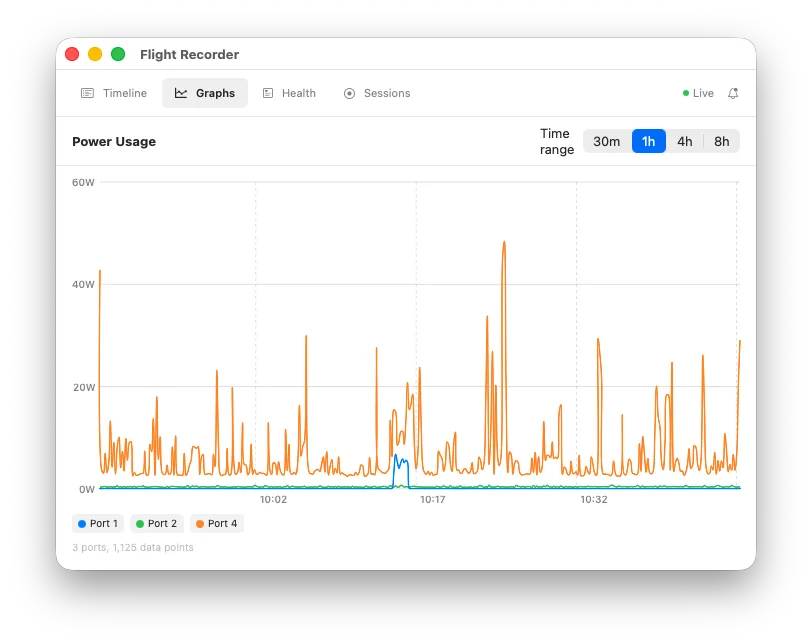
Real-time power in and out for every port, with wattage, voltage, and current. A rolling 60-second graph shows draw over time.
Connected devices show product name, vendor, serial number, USB version, and current draw. Behind a hub or dock, the row names the device you actually plugged in, not the hub, and the detail card counts the rest. Thunderbolt docks are named by their own controller.
Native resolution plus link rate (HBR2/HBR3), lanes in use, native versus Thunderbolt-tunnelled, display count, and any hub or HDMI converter in the chain.
Lifetime connection counts and error tracking per port, readable whether or not anything is plugged in. Spot overcurrent events, link errors, and enumeration failures.
Cable type (active/passive) and USB PD revision detected from the cable's e-marker data.
What the port has actually set up (USB 2, USB 3, DisplayPort, and so on), and a flag when macOS has blocked one. The usual reason a dock's USB or display won't work.
When a charger is plugged in but not charging, WhatPort says why: charging, fully charged, held to protect battery health, or simply not charging. Never a guess.
Names the connected adapter and lists its full advertised power menu, so you can see a 96W brick is a 96W brick even when little is being drawn.
Shows liquid-detection warnings reported by supported Macs (M3 and later), with guidance to disconnect the device. An absent warning does not establish that a port is dry.
A banner when a new version is out, and one click installs it. WhatPort checks the download is signed and notarised by Apple before it swaps itself over. Homebrew users can carry on with brew upgrade.
Live in the menu bar or run as a normal app with a Dock icon and a window. Show the port count next to the icon or hide it. Scale the text across every panel when the default is too small.
Every port expands to show lanes, Thunderbolt capability, cable info, power data, and a live power graph.
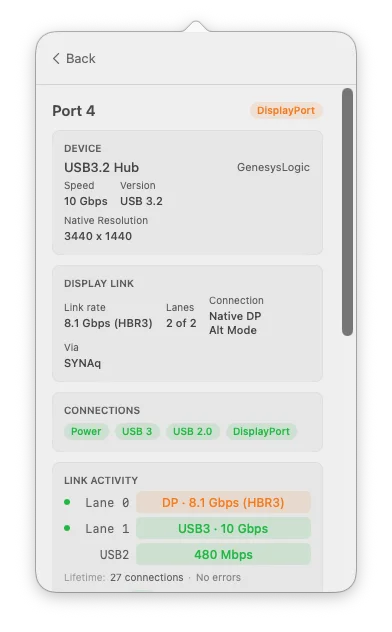
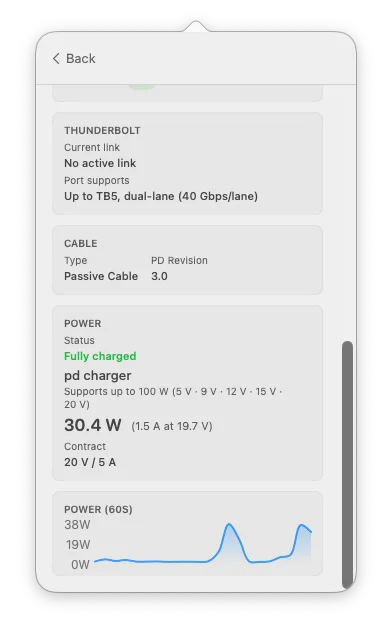
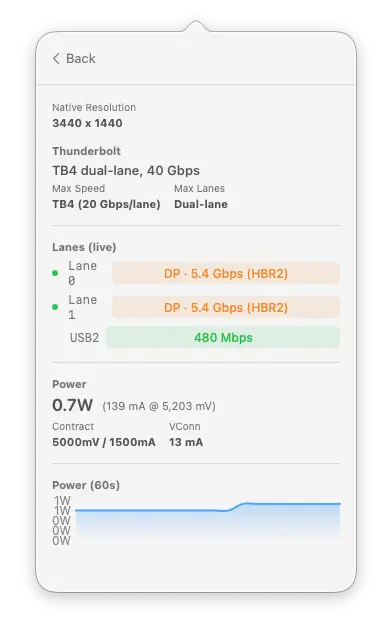
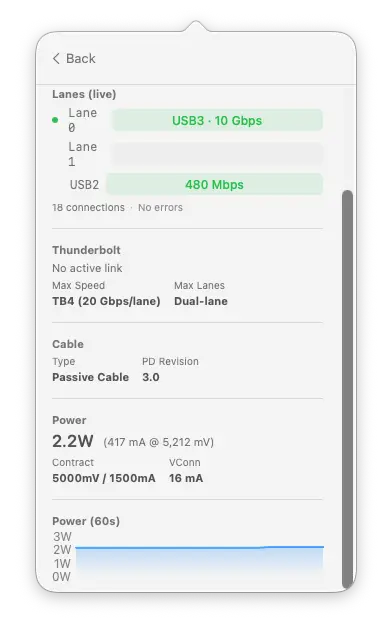
Start with the free app and check the connection in your menu bar. WhatPort reads port information; it does not change how the connection is configured.
Download the signed app and drag it into Applications. Open it to see the ports your Mac exposes.
Connect your drive, display or charger. Select its port to inspect the connection, then see what changes when you try another cable or port.
Use the Flight Recorder to keep a history, review events and export a session when you need it.
Available with Pro →WhatPort reads IOKit and SMC services without root access. It responds to connection changes and polls for updated readings. Available services vary between Apple Silicon and Intel Macs.
Reads USB-C lane state per PHY: which transport protocol each lane is carrying and whether the lane is powered on.
Reads Thunderbolt link speed, lane width, generation, and port capability. Socket ID maps to physical port number.
Per-port power, split into power in (charging) and power out (to your devices): watts, voltage, current, and the negotiated USB-PD contract.
Yes, in reduced detail. Intel Macs don't publish the USB-C port-controller services Apple Silicon does (AppleTypeCPhy, IOPortTransportStateCC), so per-port USB-PD contracts, pin configuration and port health aren't available. You still get Thunderbolt ports with link speed and width, the full device tree behind each port, and power. The app shows a banner saying so rather than leaving blanks.
Yes. On Macs without a battery (Mac mini, Mac Studio, Mac Pro), WhatPort reads per-port power from the SMC, so power, protocol, and lane data all work the same as on a laptop.
No. All IOKit reads are unprivileged. No root, no System Extension, no background daemon. It runs as a regular menu bar app. The only entitlement it carries is outbound network access, used for the update check and Pro licence validation.
Port readings and Flight Recorder history stay on your Mac. WhatPort checks GitHub for updates and downloads a release when you choose to install it. Pro activation and licence validation send your licence key and Mac identifier to the licensing service. There are no in-app usage analytics. See the privacy policy for details.
One key activates Pro on up to two Macs, so your laptop and your desktop are both covered. Paste the same key into the app on each machine under Flight Recorder. Replacing a Mac? Email support and we'll free up a slot.
WhatCable focuses on cable identity: what a cable can do, its e-marker data, and charging diagnostics. WhatPort focuses on port status: what each port is doing right now, with live lane and power data.
TB5 ports negotiate down to the connected device's capability. If your device only supports TB4, the port runs at TB4 speed. The Thunderbolt section shows both the active link and the port's maximum capability.
When a charger is connected but the battery isn't filling, WhatPort tells you why: it's charging, already full, or being held below full to protect battery health (Optimized Battery Charging or an 80% limit). It only reports a reason it can confirm, never a guess.
Small Mac utilities built the same way: read what the Mac already knows, then say it in plain English.
WhatPort is signed, notarised, and ready to run. Requires macOS 14 (Sonoma) or later, on Intel or Apple Silicon.
Grab the latest .zip from GitHub Releases. Unzip and drag WhatPort.app into Applications.
Prefer the terminal? Install with brew and get upgrades for free.
brew install --cask \
  darrylmorley/whatport/whatport
View the tap